Written by the SquareFaces team. Updated April 2026. This guide focuses on practical export and crop checks for SquareFaces avatars.
Discord Avatar Size Guide
Discord profile pictures appear in chat messages, member lists, profile popups, and server communities. A good Discord avatar should start as a square image, keep the face centered, and remain readable when Discord displays it very small.
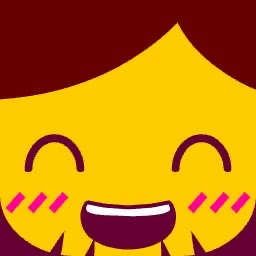
Bold gaming profile icon
Medium. Preview it as a circle if the design has details near the top edge.
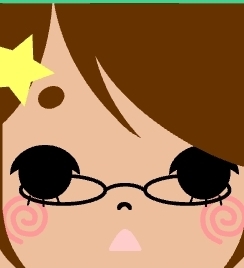
Soft color avatar
Low. The face remains centered and easy to crop.
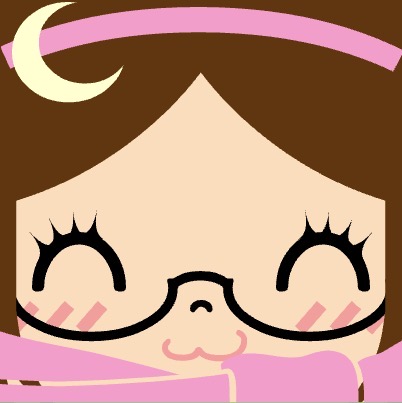
Playful community avatar
Medium. Check whether any playful detail is close to the edge.
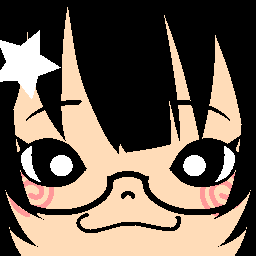
Balanced profile picture
Low. The key features are not placed in the corners.
Quick answer
For a SquareFaces avatar, export a square PNG and keep the important face details near the center. A 512 x 512 PNG is a practical safe size for profile use because it gives enough detail for resizing while staying easy to upload and reuse.
Recommended export sizes
| Use case | Recommended export | Format | Why |
|---|---|---|---|
| Discord profile avatar | 512 x 512 | PNG | A practical default for clean resizing and small profile views. |
| Reuse across gaming profiles | 1024 x 1024 | PNG | Useful if you also upload the avatar to Steam, forums, or profile cards. |
| Forum or comment icon | 256 x 256 or 512 x 512 | PNG | Works well beside posts and comments. |
| Quick preview check | 64 x 64 and 32 x 32 | Preview only | Shows whether the expression survives real UI sizes. |
Square upload, circular display
Discord may display profile pictures inside a circular frame. That does not mean you should create a circular source file. Upload a square image and keep the face, eyes, mouth, hair, and accessories inside the center safe area.
The corners of the square are the first areas that can disappear in a circular crop. Use those corners for background color, not for identity details.
Discord avatar safe area checklist
- The face is centered.
- The eyes and mouth are not close to the corners.
- Hats, ears, or tall hair have enough top margin.
- The background is simple and does not compete with the face.
- The avatar still looks clear at 64px.
- The main identity detail is visible without reading text.
PNG vs JPG for Discord avatars
| Format | Best for | Notes |
|---|---|---|
| PNG | Generated avatars, pixel art, flat colors, crisp edges | Recommended for most SquareFaces exports. |
| JPG | Photo-like images | Can soften edges and introduce compression artifacts. |
| GIF | Animated avatars where supported | Only use if animation is the point of the avatar. |
Common Discord avatar problems
Problem: The face looks cropped.
Fix: Move important details away from the edge and leave more background around the face.
Problem: The avatar looks blurry.
Fix: Use a clean PNG export and avoid re-uploading a tiny resized copy.
Problem: The expression disappears in chat.
Fix: Simplify the eyes and mouth, then preview at 64px and 32px.
Problem: The avatar blends into dark UI.
Fix: Increase contrast between the face, hair, and background.
FAQ
What is the best Discord avatar size?
For SquareFaces avatars, a 512 x 512 square PNG is a practical safe choice. Larger square PNGs can work too, but the design should still be clear when Discord displays it small.
Should my avatar be square or circular?
Upload a square image. Discord may show it in a circle, but a square source gives more predictable cropping.
Is PNG or JPG better?
PNG is usually better for generated avatars, pixel avatars, flat colors, and crisp edges. JPG is acceptable for photo-like images.
Why did Discord crop part of my avatar?
Circular display can hide corners. Keep important details near the center and use the corners for background space.
Create a Discord-ready avatar with the Square Face Generator. If you want to compare styles first, browse the Square Face Avatar Examples.