Written by the SquareFaces team. Updated April 2026. This guide is based on testing generated avatars as small profile icons at 32px, 64px, and 128px.
How to Make a Square Face Avatar
A square face avatar is a profile picture built around a centered face, readable expression, and strong silhouette. It works well for Discord, Steam, forums, social media, and gaming communities because most platforms display avatars as small square or circular icons.
The goal is not to add every possible detail. The goal is to make an icon that someone can recognize quickly beside a username.
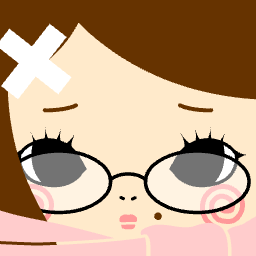
Centered profile avatar
The face stays near the center and the expression is readable without relying on tiny details.
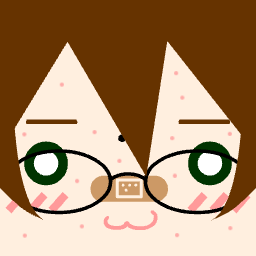
High contrast character icon
The stronger contrast between hair, face, and background helps the avatar remain visible in chat lists.
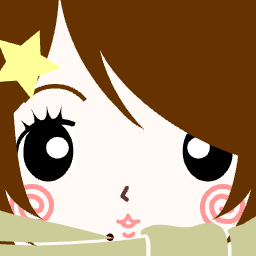
Cute expression avatar
The expression is simple enough to understand quickly, which is useful when the avatar appears beside comments.
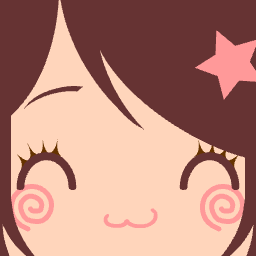
Bright social avatar
A clean background gives the character enough separation from the frame.
Step 1: Start with the face shape
Begin with the base face before changing accessories. A clear face shape gives the avatar structure. If the face is already hard to read, adding glasses, blush, hats, or extra decorations will usually make the profile picture worse.
Use a centered composition and leave a small margin around the face. This gives Discord and other platforms room to crop the image into a circle without cutting off the main expression.
Step 2: Choose a readable expression
Eyes and mouth are the first details people notice. Use simple shapes that remain visible when the avatar is small. Thin mouths, tiny pupils, and very light eyebrows often disappear in chat lists.
- The eyes are visible at 64px.
- The mouth is simple enough to read quickly.
- The face still has personality without needing text.
- The expression does not rely on tiny details.
Step 3: Pick colors with enough contrast
A profile avatar needs separation between the face, hair, background, and accessories. If the face is light, avoid a pale background. If the hair is dark, make sure it does not blend into the image edge.
| Element | Good choice | Avoid |
|---|---|---|
| Face and background | Clearly different colors | Pale face on pale background |
| Hair and frame | Visible silhouette | Dark hair touching a dark edge |
| Accessories | One strong accent | Many tiny low-contrast parts |
Step 4: Add one memorable detail
One strong detail is better than many weak details. Choose glasses, a hat, a color accent, cat ears, a hair shape, or a funny expression. If every part competes for attention, the avatar becomes harder to recognize.
Before exporting, ask one simple question: what would someone remember about this avatar after seeing it for one second?
Step 5: Check circular crop safety
Many platforms upload a square image but display it inside a circle. Corners are the risky area. Keep eyes, mouth, hair, ears, hats, and other identity details near the center. Background color can fill the corners, but important features should not depend on them.
Step 6: Download PNG and preview small
PNG is the safest export format for generated avatars because it keeps edges crisp. After downloading, preview the avatar at 128px, 64px, and 32px. If the expression and main detail are still recognizable, the avatar is ready to use.
Good vs weak avatar choices
| Strong avatar | Weak avatar |
|---|---|
| Centered face with margin | Face pushed into the corners |
| One memorable detail | Too many small accessories |
| Clear background contrast | Similar face, hair, and background colors |
| Readable at 64px | Only looks good at full size |
| PNG export | Compressed or blurry upload |
Common mistakes
- Using too many tiny details that disappear at small sizes.
- Choosing a background color too close to the face or hair color.
- Putting important features near the corners where circular crops may hide them.
- Exporting a low-resolution image and reusing that smaller copy everywhere.
- Adding text inside the avatar instead of relying on the character design.
FAQ
What size should I download?
Keep the largest square PNG the generator gives you, then let each platform resize it. A larger source image is useful as long as the design still reads clearly at small sizes.
Can I use the avatar on Discord or Steam?
Yes. Square avatars work well for Discord, Steam, forums, and most social platforms because they are easy to center and crop.
Should I use a simple or detailed design?
For profile pictures, simple designs usually work better. The avatar should still be recognizable when it appears as a tiny icon.
What should I check before uploading?
Preview the avatar as a small square and as a circle. Make sure the eyes, mouth, and main identity detail remain visible.
Ready to create one? Start with the Square Face Generator, browse the Square Face Avatar Examples, or check the Discord Avatar Size Guide before uploading.